How to Read an App Store Privacy Label Before You Download
Every app listing carries a short disclosure of what the app collects about you: Apple’s privacy “nutrition label” or Google Play’s Data safety section. Reading it takes less than a minute and reveals more than screenshots ever will. Here is exactly where to look and what each line means.
Key takeaways
- Privacy labels are self-reported disclosures. The developer describes its own data practices; the store shows the answers, but does not audit every claim.
- Apple uses three data buckets. Data Used to Track You, Data Linked to You, and Data Not Linked to You — each one tells you something different about how your information is handled.
- Google Play shows collection, sharing, and security. The Data safety section lists what is collected, whether it is shared, whether it is encrypted, and whether you can request deletion.
- A clean label is not a safety guarantee. Labels describe declared practices, not hidden behavior — always combine them with review patterns and permission checks.
- Thirty seconds of reading saves real privacy. Check the label before every install, and treat a greedy label as a reason to look for alternatives.
On this page
- Key takeaways
- On this page
- What a privacy label actually is, and who writes it
- Apple’s label, decoded: the three data buckets
- Google Play’s Data safety section: what to look for
- What a privacy label can never tell you
- A one-minute label check before any download
- Frequently asked questions
- Your concrete next step
What a privacy label actually is, and who writes it
Think of a privacy label the way you think of a nutrition label on food. It does not judge the product; it standardizes the disclosure so you can compare two products quickly. On the Apple App Store, this disclosure appears on every app listing under the heading “App Privacy.” On Google Play, it appears under “Data safety.” Both sit on the listing page before you install, which is the whole point: you get the disclosure while you can still walk away.
Here is the part most people miss: the developer writes these answers. Apple requires developers to answer a privacy questionnaire in App Store Connect, and Google requires developers to fill out the Data safety form in the Play Console. The stores publish the answers in a standardized format, but the content comes from the developer. That does not make labels useless — far from it. A developer that openly declares heavy data collection is at least telling you the truth up front, and a developer that declares nothing while behaving badly has created a paper trail.
Why does this matter to you as an ordinary phone owner? Because privacy policies are long, written by lawyers, and almost nobody reads them. The label is the only privacy disclosure designed for a normal human standing in the store aisle of their phone. Learning to skim it is the single highest-leverage privacy habit you can build — it costs you half a minute and applies to every app you will ever install.
Apple’s label, decoded: the three data buckets
Apple organizes its privacy disclosure around three categories, plus a fourth outcome when an app collects nothing at all. Understanding the difference between them is the entire skill, so take them one at a time.
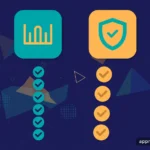
Data Used to Track You. This is the bucket to check first. “Tracking” has a specific meaning in Apple’s world: linking data collected by this app with data from other companies’ apps or websites, for advertising purposes or with data brokers. If this section lists data types — contact info, identifiers, location, usage data — the app or its partners are building a profile of you across services. A flashlight app with this section filled in should make you pause.
Data Linked to You. This covers data the app collects and ties to your identity, account, or device — but does not use for cross-company tracking. A banking app legitimately needs your financial info linked to you; a messaging app needs your contacts. The question to ask is proportion: does the app’s job plausibly require each data type listed here? A note-taking app listing your location and browsing history deserves your suspicion.
Data Not Linked to You. This is data collected without attaching it to your identity — typically diagnostics, crash reports, or aggregated usage statistics. This bucket is the least concerning, but it is still collection. Note the distinction the label draws: “not linked to you” is a claim about the developer’s practice, and you are taking their word for it.
When a listing shows “Data Not Collected,” Apple is reporting that the developer declared no data collection at all. That is the strongest posture the label offers, and it is worth favoring when two apps otherwise look equal.

Google Play’s Data safety section: what to look for
Google Play takes a different approach with its Data safety section, and in some ways it is more practical for decision-making. Instead of buckets, it answers a series of direct questions about the app’s data practices. Tap “Data safety” on any Play listing and look for these items.
First, the section lists the data types collected and shared — location, personal info, app activity, financial info, and others — and distinguishes collecting (the developer takes it) from sharing (the developer passes it to someone else). Sharing is the more serious of the two, because it means your data leaves the developer’s hands entirely. An app that collects your email for account login is normal; an app that shares your contacts with third parties deserves a hard look.
Second, it tells you the purpose of collection: app functionality, analytics, advertising, fraud prevention, and similar options. Purpose matters enormously. Your location used for “app functionality” in a maps app is the job description. Your location used for “advertising” in a weather app is a business model you are funding with your movements.
Third, and most useful of all, the section answers two security questions directly: is the data encrypted in transit, and can you request that your data be deleted? These two lines separate apps that treat your data as a liability from apps that treat it as an asset. If an app collects sensitive data but offers no deletion path, you are looking at a one-way door.
What a privacy label can never tell you
Now for the honest limitation, because this site does not pretend labels are magic. A privacy label describes what the developer declares. It cannot prove the declaration is complete or accurate. A dishonest or careless developer can under-report collection, and the label will look clean. Stores do check declarations against app behavior — Google, for example, can reject updates when the Data safety form does not match what the app actually does — but no store audits every line of every app.
Labels also do not tell you about security quality. An app can collect very little and still store it carelessly. And labels age: a developer can change its data practices in an update, and the label is only as current as the last declaration. None of this makes labels worthless — it makes them one signal among several.
This is why the label belongs in a routine, not a ritual. Pair it with two other habits covered elsewhere on this site: checking an app’s reviews for patterns of suspicious behavior (see our guide to spotting fake and scam apps), and reviewing the permissions it requests against what it actually needs (see app permissions explained). Label plus reviews plus permissions gives you a three-point check that catches most problems.
A one-minute label check before any download
Here is the routine. It takes about a minute once you have done it twice, and it applies identically to every app you will ever consider.
Step one: find the disclosure. On an App Store listing, scroll to the “App Privacy” section. On Google Play, scroll to “Data safety” and tap to expand the details. Do this before reading reviews or screenshots — the disclosure is the part of the listing the developer would least like you to read, which is exactly why you should read it first.
Step two: scan for tracking and sharing. On Apple, look at “Data Used to Track You.” Any entries here mean cross-service profiling; decide whether the app’s value justifies that. On Google Play, look at the “shared with third parties” line and the advertising purpose. Sharing plus advertising is the combination that should give you the most pause.
Step three: check proportion. Read the full list of collected data types and ask one question for each: does the app’s job require this? A photo editor needs your photos. It does not need your contacts. A weather app needs your approximate location. It does not need your precise location, your contacts, and your browsing history. When the list is longer than the job description, keep scrolling to the next app.
Step four: check the exits. On Google Play, confirm there is a data-deletion path. On Apple, this information is not on the label, so check the app’s privacy policy link on the listing for deletion instructions. If there is no way out, think twice about what goes in.
Frequently asked questions
Do privacy labels prove an app is safe to use?
No. Privacy labels are self-reported declarations from the developer, published in a standardized format by the store. They tell you what the developer claims to collect, and they are useful for comparing apps — but they cannot verify that the declaration is complete or that the app’s security is sound. Treat a clean label as a good sign, not a guarantee. Combine it with review patterns, the permissions the app requests, and how long the developer has been around before you decide.
What does “Data Used to Track You” actually mean on the App Store?
Apple defines tracking narrowly: it means linking data collected from this app with data from other companies’ apps, websites, or offline sources for targeted advertising or advertising measurement — or sharing it with a data broker. It does not mean ordinary analytics or crash reporting inside the app itself. If an app declares tracking, it is telling you that your activity helps build an advertising profile that follows you across services. That is the single most important line on the whole label.
Where is the Data safety section on Google Play?
Open the app’s listing in the Play Store app, scroll down past the ratings and reviews, and look for the “Data safety” section. Tap it to expand the full details, which show the data types collected, whether they are shared with third parties, the purposes of collection, whether data is encrypted in transit, and whether you can request deletion. Google requires developers to complete this section for apps published on Play, so its absence on an older listing is itself a signal worth noticing.
An app I like has a scary-looking label. Should I delete it?
Not necessarily, but do investigate. First, check whether the data collection matches the app’s actual job — a maps app collecting location is expected. Second, look at the purposes on Google Play or the buckets on Apple: collection for app functionality is different from collection for advertising. Third, check whether you can limit it: deny optional permissions, turn off ad personalization, or use the app without an account. If the collection is disproportionate and unavoidable, that is when you look for an alternative with a slimmer label.
Do privacy labels change when an app updates?
They can, and they should. Developers are expected to update their declarations when their data practices change, and both Apple and Google allow label updates without a full app release. In practice, labels are only as current as the developer’s last honest declaration. If an app you have used for years suddenly behaves differently — new permission prompts, new ad formats, new account requirements — it is worth re-reading its label. A label that no longer matches the app’s behavior is itself a red flag.
Your concrete next step
Pick one app you installed in the last month — the one you remember least about. Open its store listing right now and read its privacy label or Data safety section using the four-step check above: find the disclosure, scan for tracking and sharing, check proportion, check the exits. If what you find surprises you, adjust its permissions or replace it. Then make this a rule: no new app gets installed until its label has been read. It takes a minute, and it is the closest thing to a free privacy upgrade your phone offers.
App Merit Lab publishes educational guides only. App features, prices, and policies change often — verify details in the official app store listing before making decisions.